Guide
Connect Claude to Voxtell
Voxtell is in the Claude connector directory. Find it, click Connect, sign in with your Voxtell login, and start asking. Five minutes, no API keys, nothing to paste.
Updated
Choose your setup
Claude on the web or desktop app
Claude on the web or in the desktop app. Connectors you add here also appear in the Claude mobile apps.
Screenshots for
- 01
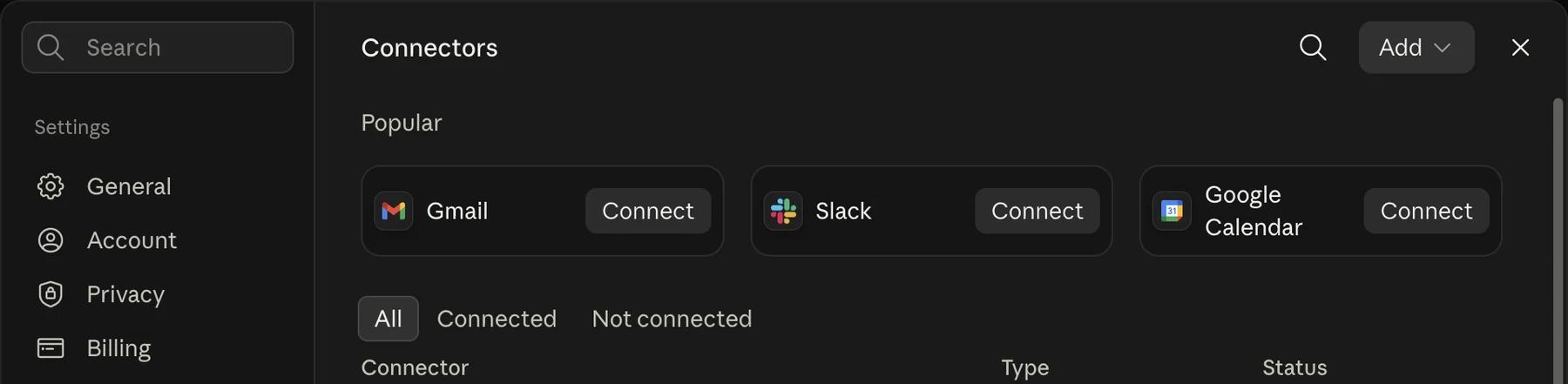
Open Customize, then Connectors
In Claude on the web or desktop, click Customize in the left sidebar, then Connectors, then Browse connectors. Or skip straight to the listing with the Open in Claude buttons at the top of this page.
- 02
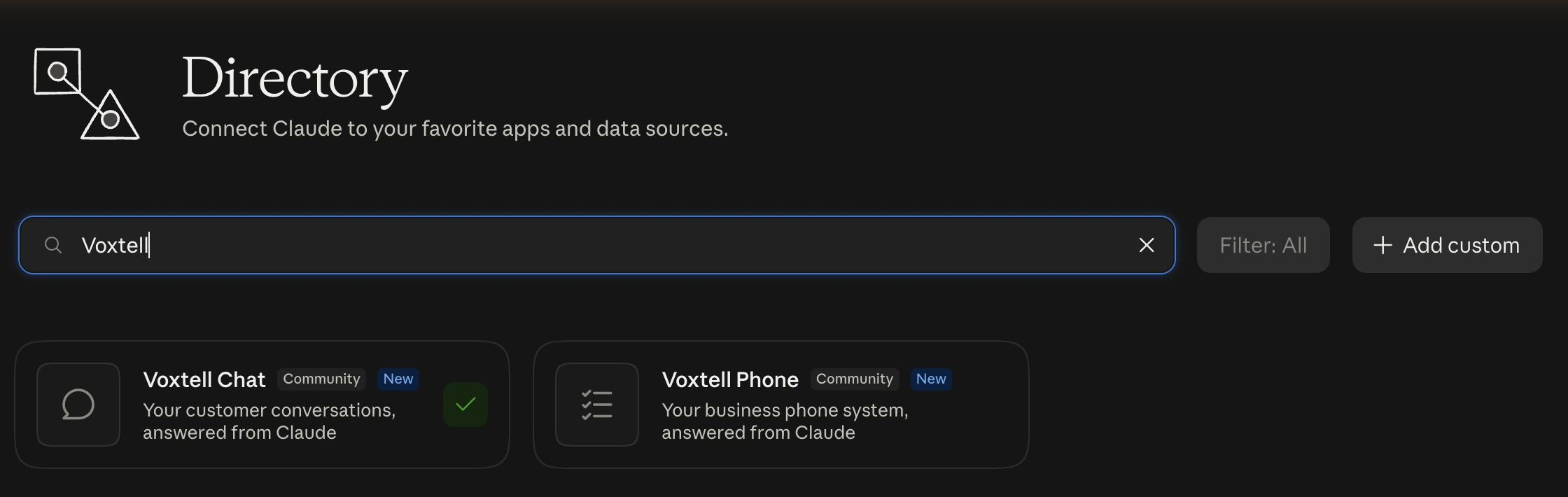
Search for Voxtell
Type Voxtell in the directory search. Two cards appear: Voxtell Chat and Voxtell Phone. Open the one you want; you can come back for the other.
- 03
Click Connect to Claude
The listing shows what the connector does and every tool it has. Click Connect to Claude at the top right.

- 04
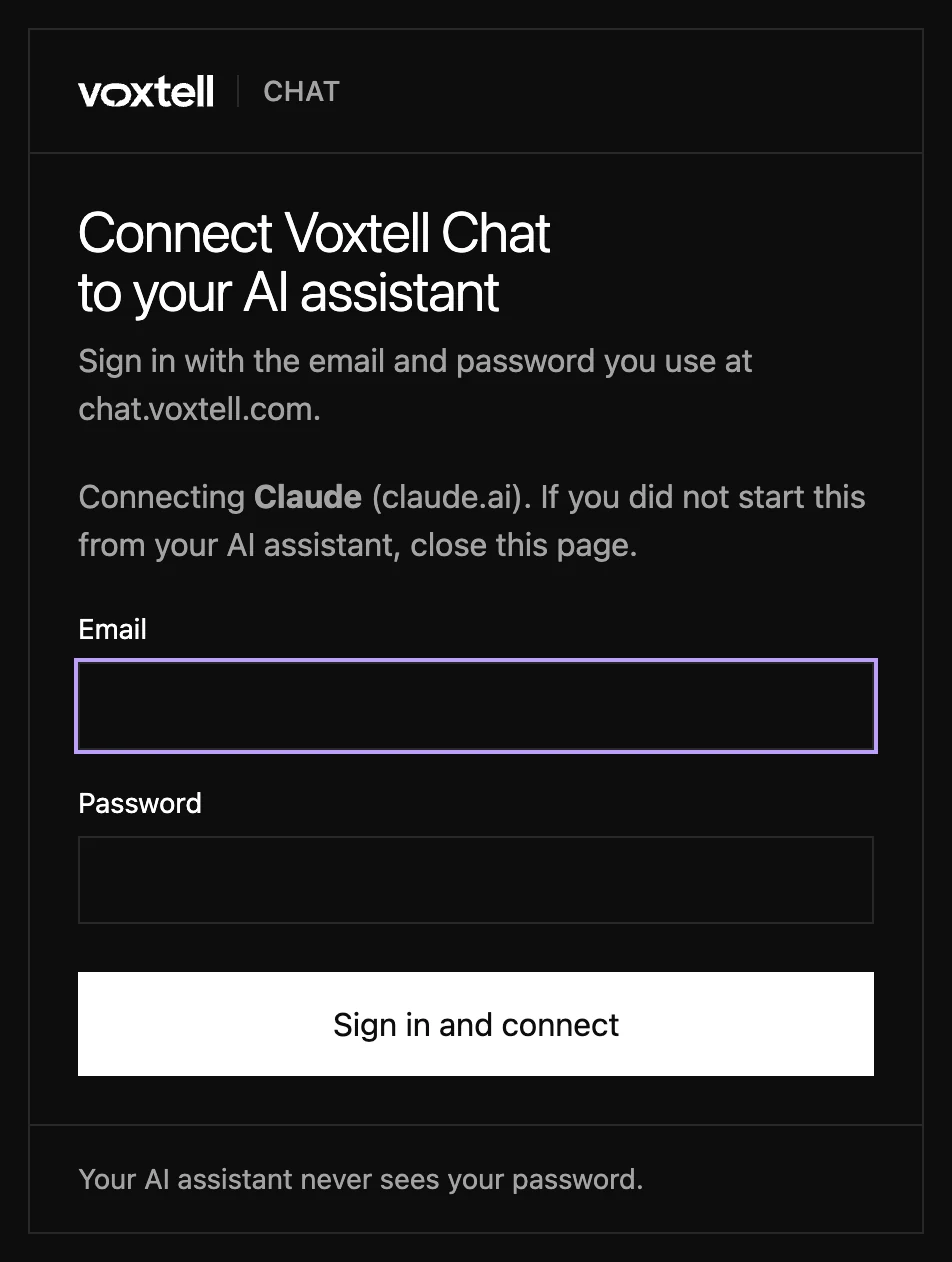
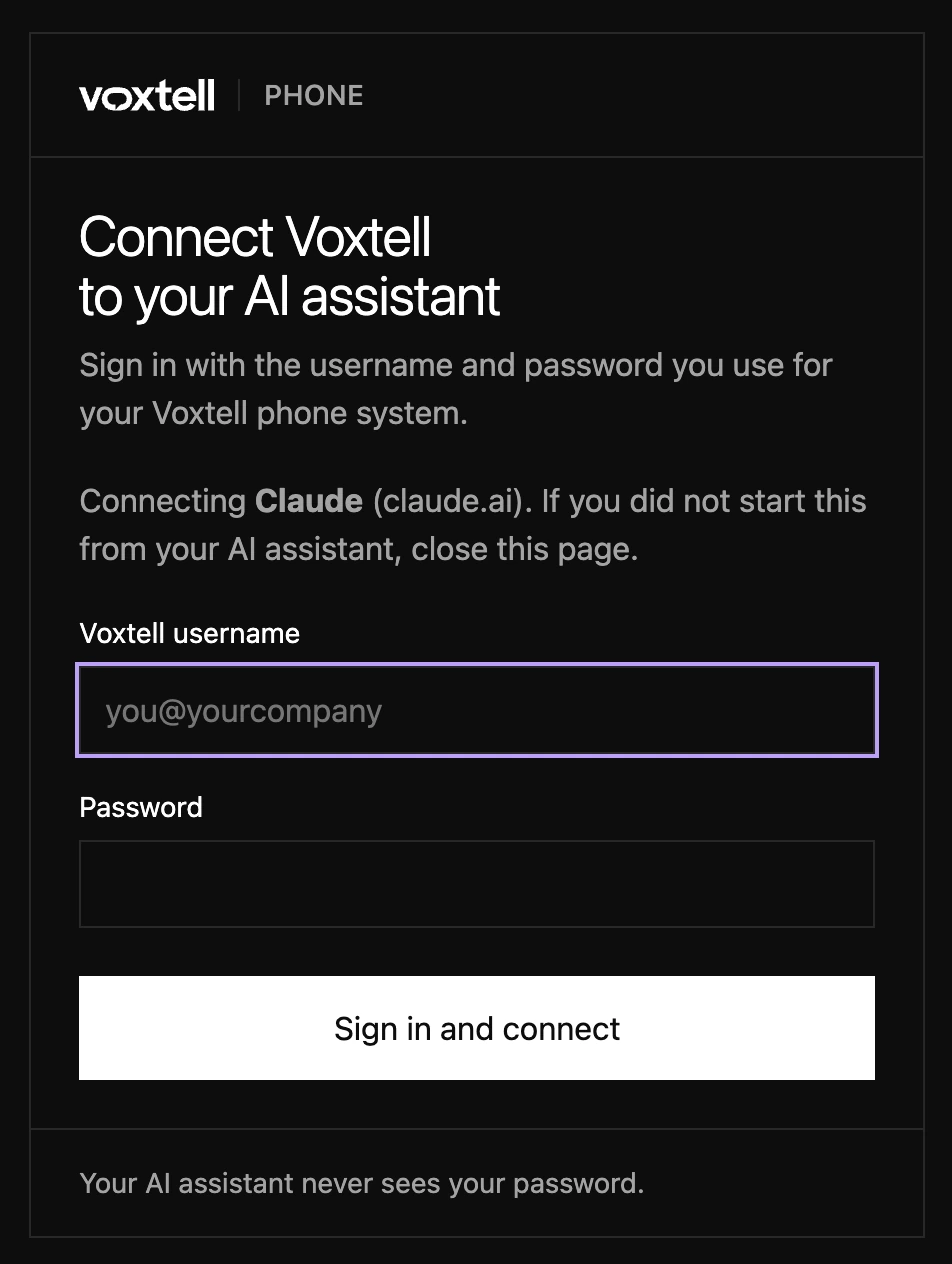
Sign in with your Voxtell login
A Voxtell page opens that names Claude as the app you are connecting. Enter the login you use for Voxtell (your email for Voxtell Chat, your username for the phone system) and your password, then the code from your authenticator app if your account has two-factor authentication. Voxtell then sends you back to Claude.
- 05
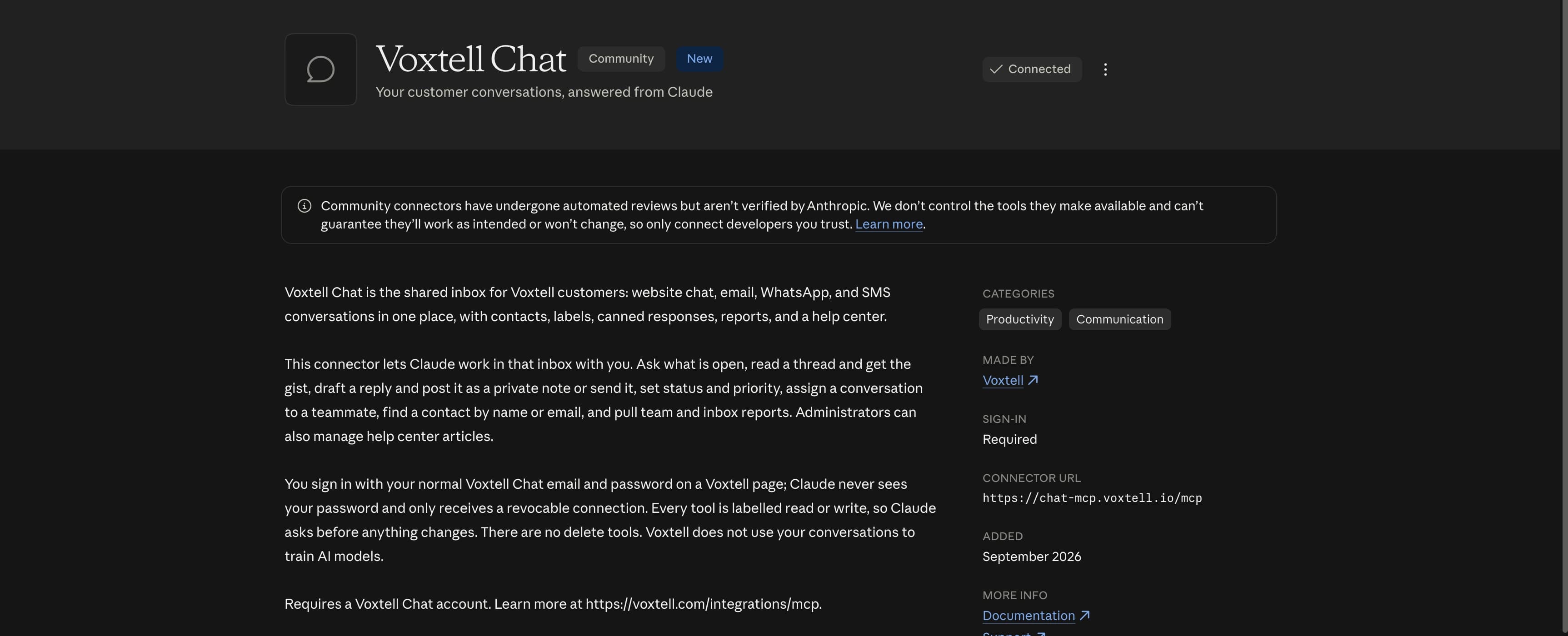
You are connected
The listing now says Connected. Under Customize, then Connectors, every Voxtell tool starts as Needs approval, so Claude asks before it acts.
- 06
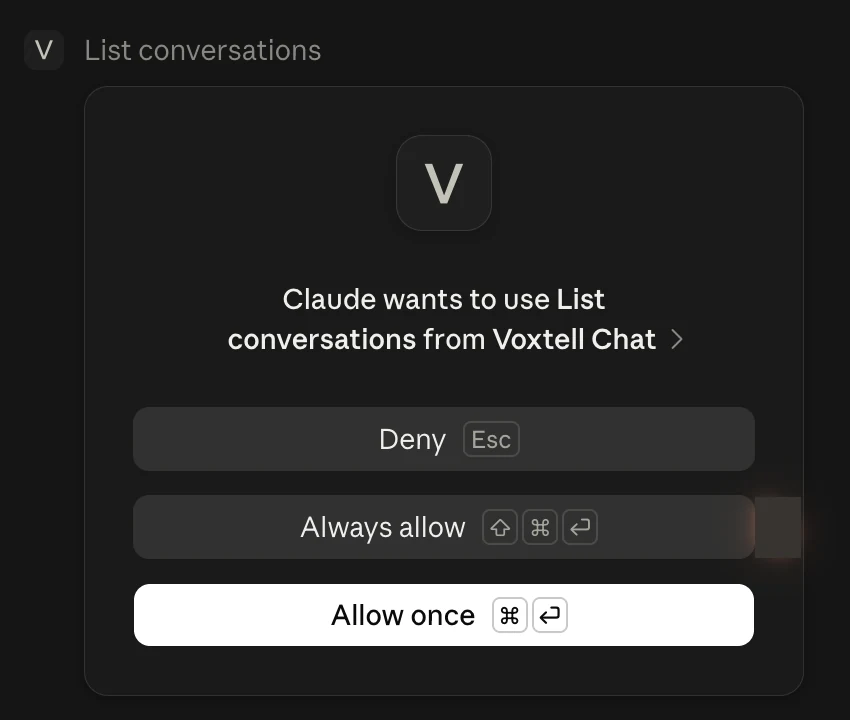
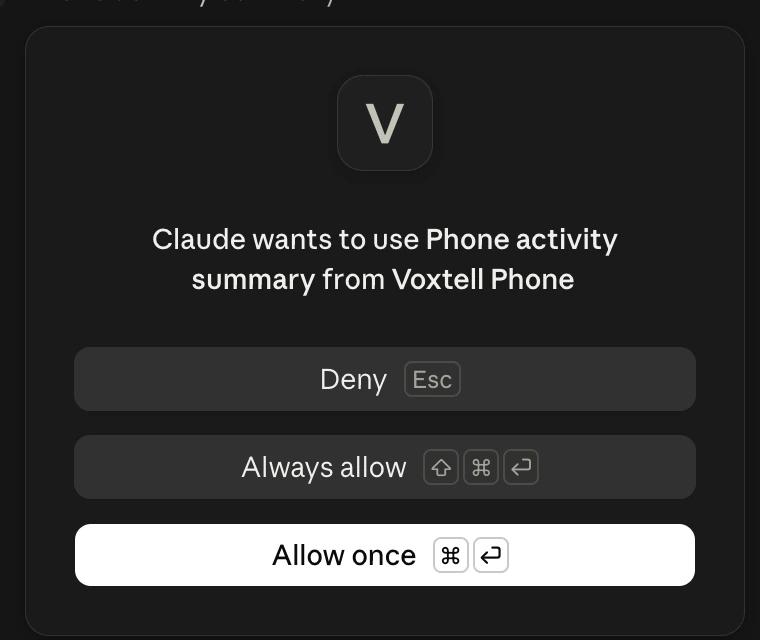
Approve the first tool use
Start a new chat and ask something from the list below. The first time Claude reaches for a Voxtell tool it asks you. Choose Allow once, or Always allow to stop being asked for that tool.
- 07
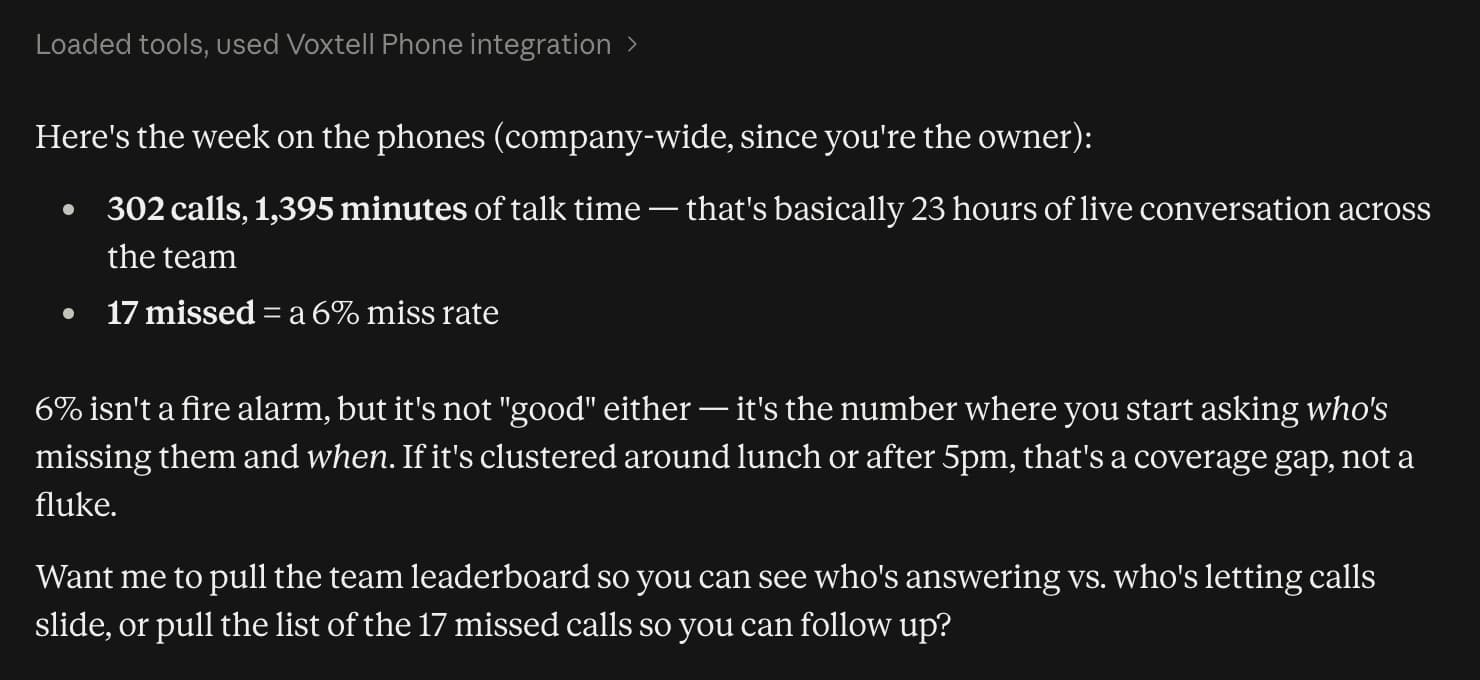
Read your first answer
Claude loads the Voxtell tools, calls the one it needs, and answers in plain language.

Add by address insteadOnly if your organization has switched the directory off. You paste the connector address once; everything after that is the same.
Screenshots for
- 01
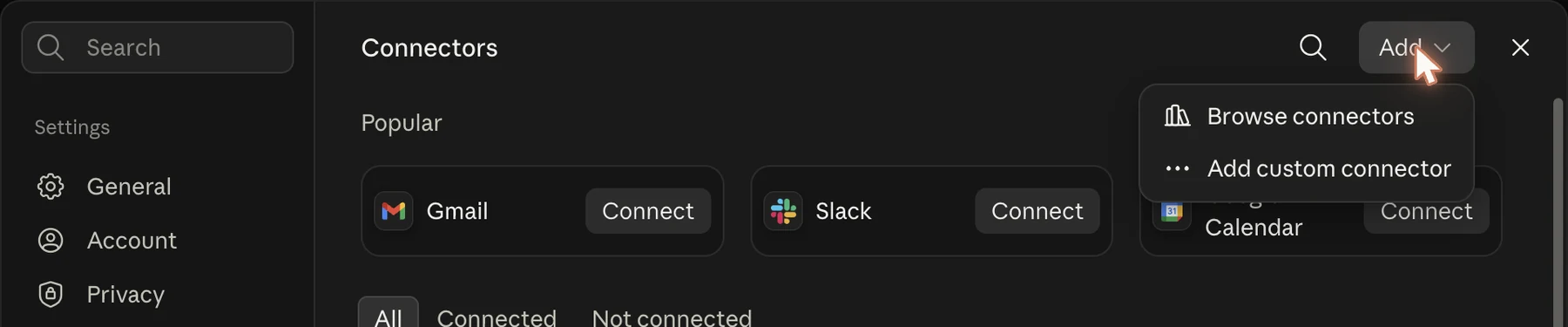
Add a custom connector
Under Customize, then Connectors, click Add at the top right and choose Add custom connector.
- 02
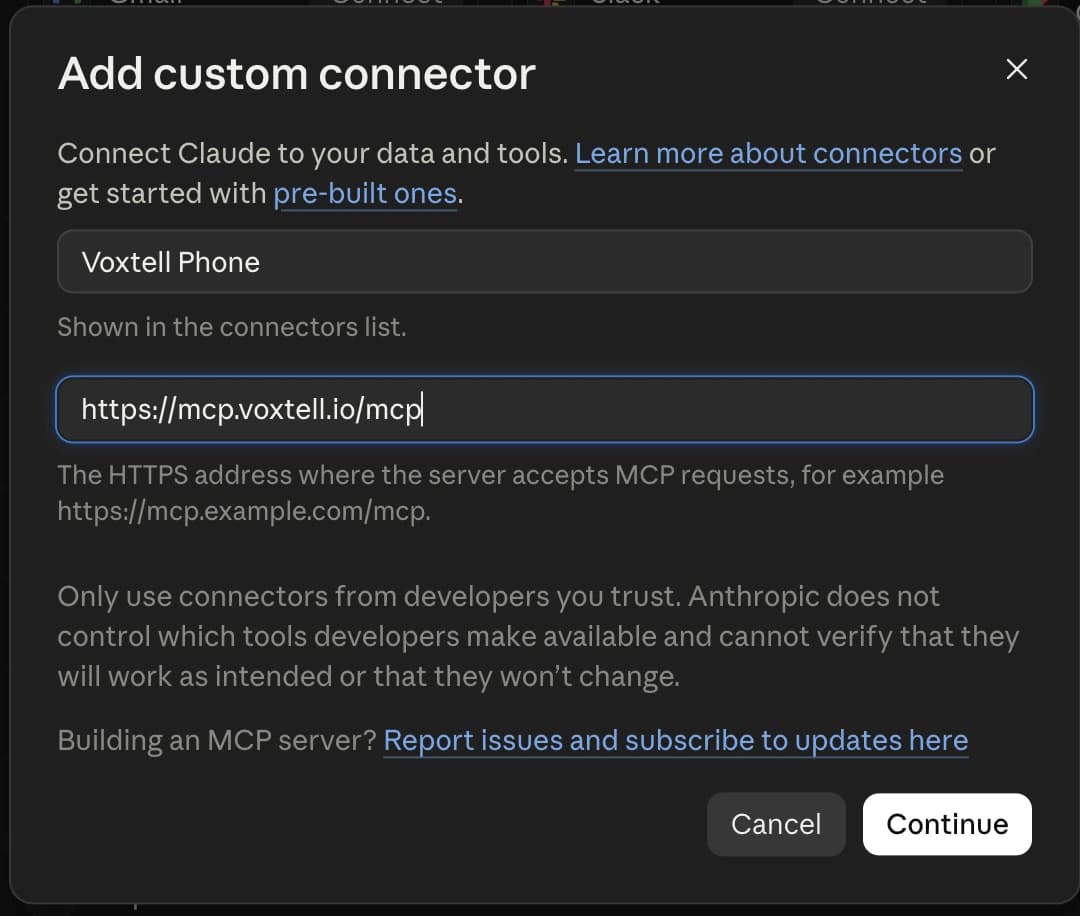
Paste the Voxtell address
Name it Voxtell Chat or Voxtell Phone, paste the matching address into Remote MCP server URL, and click Continue. You can add both, one at a time.
AI Phone System connector addresshttps://mcp.voxtell.io/mcpAI Chat connector addresshttps://chat-mcp.voxtell.io/mcp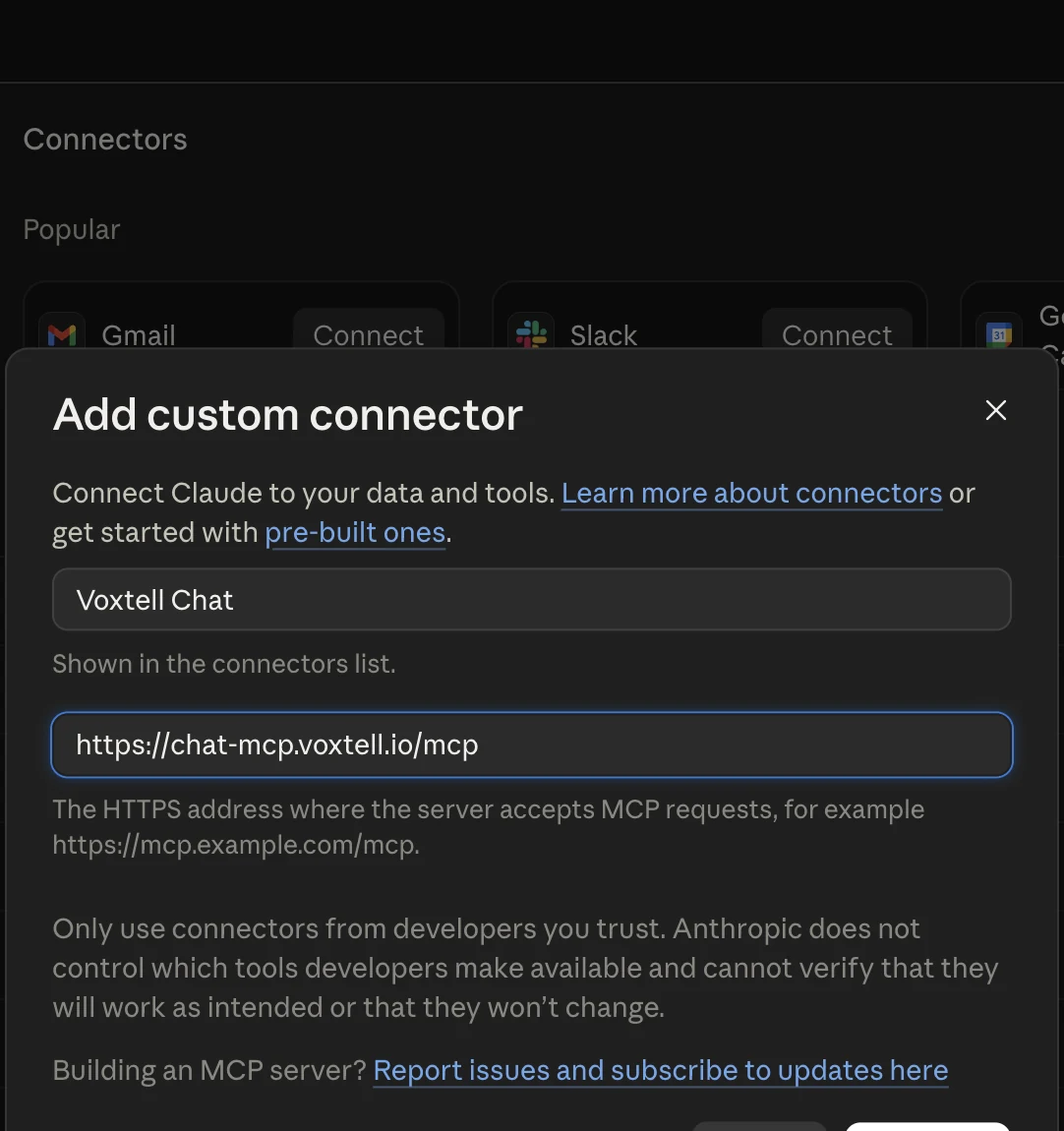
- 03
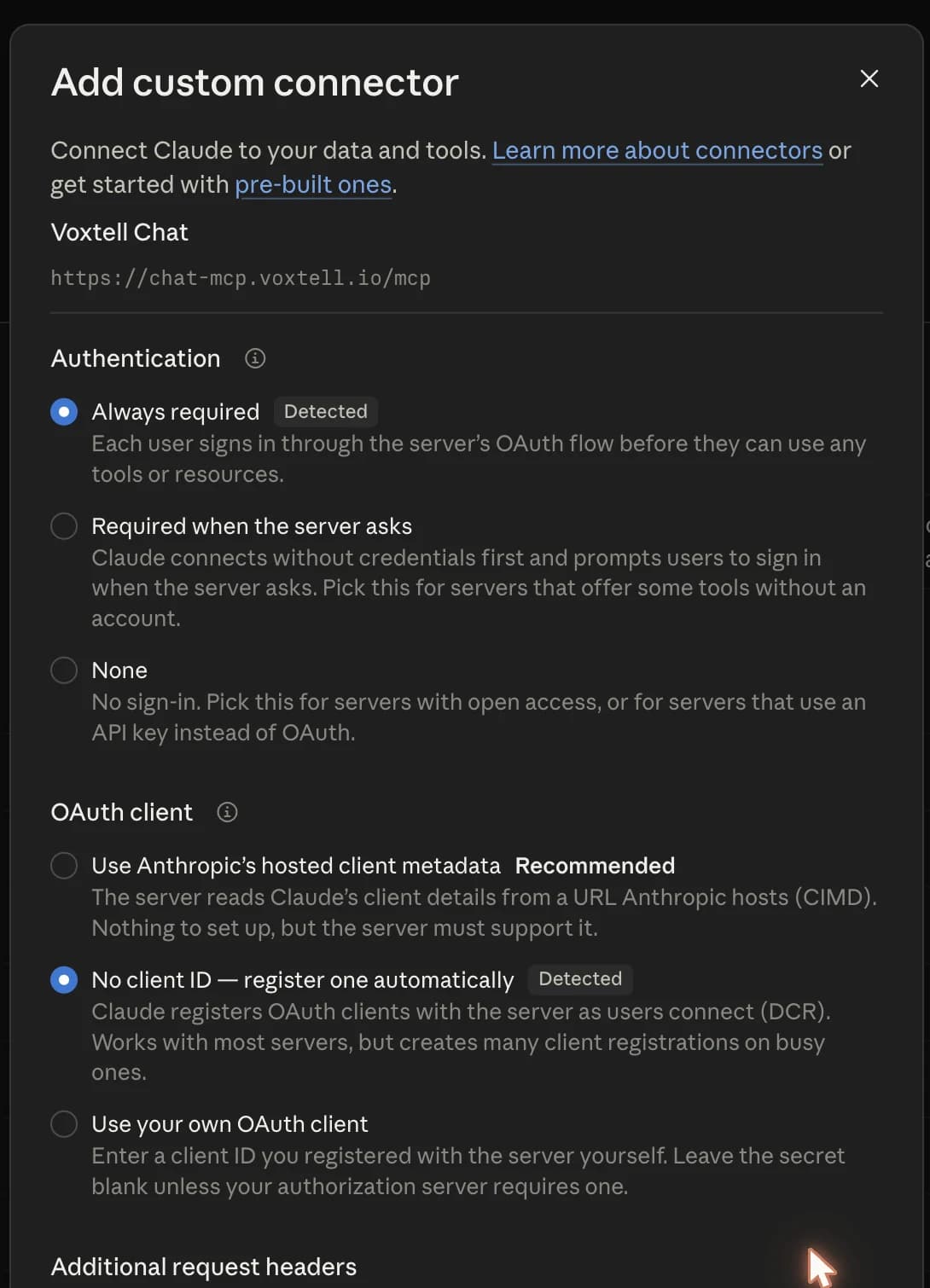
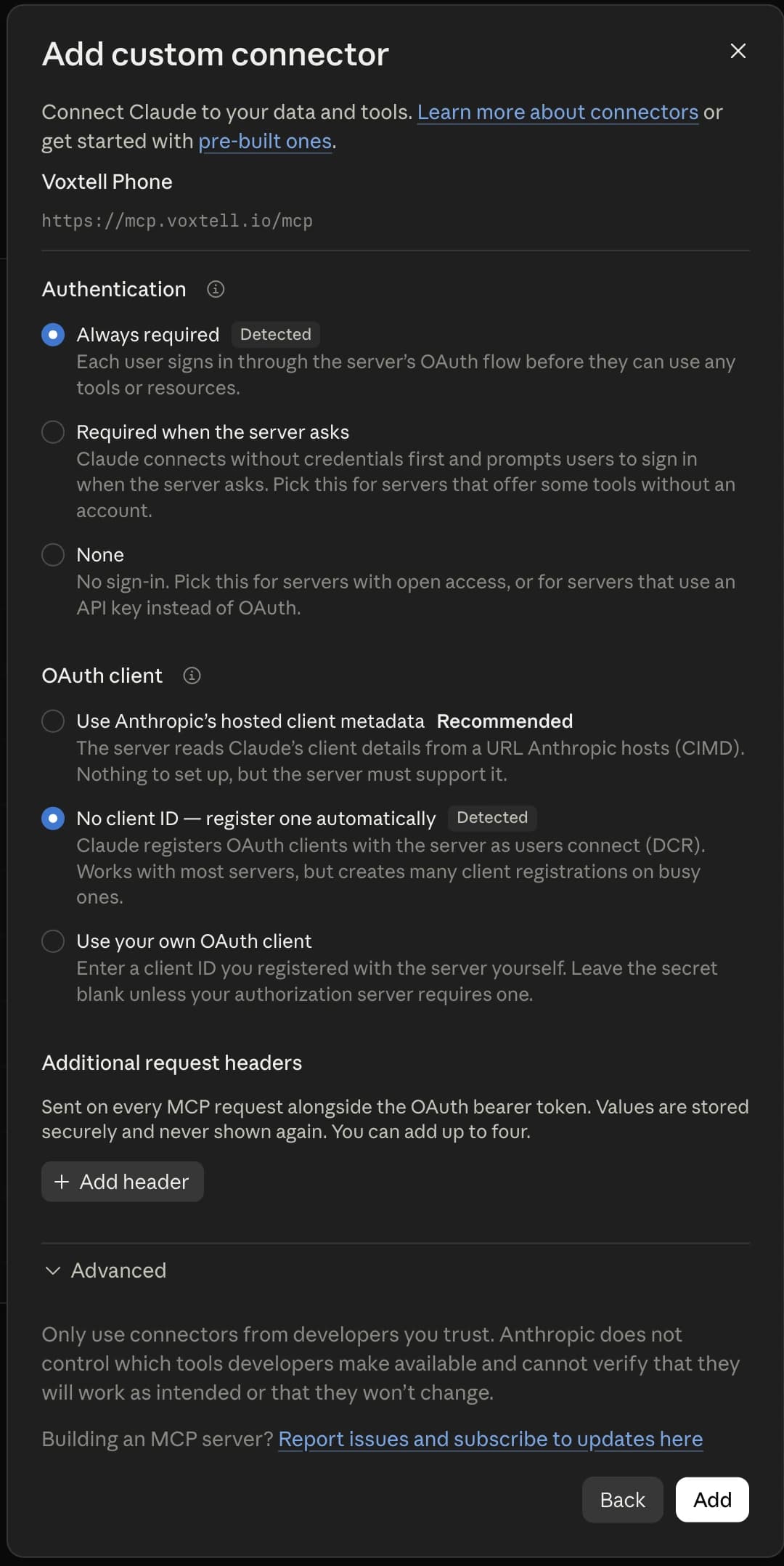
Keep the detected settings
Claude checks the address, detects that Voxtell asks everyone to sign in, and registers itself automatically. Leave Authentication on Always required and OAuth client on register one automatically, then click Add.
- 04
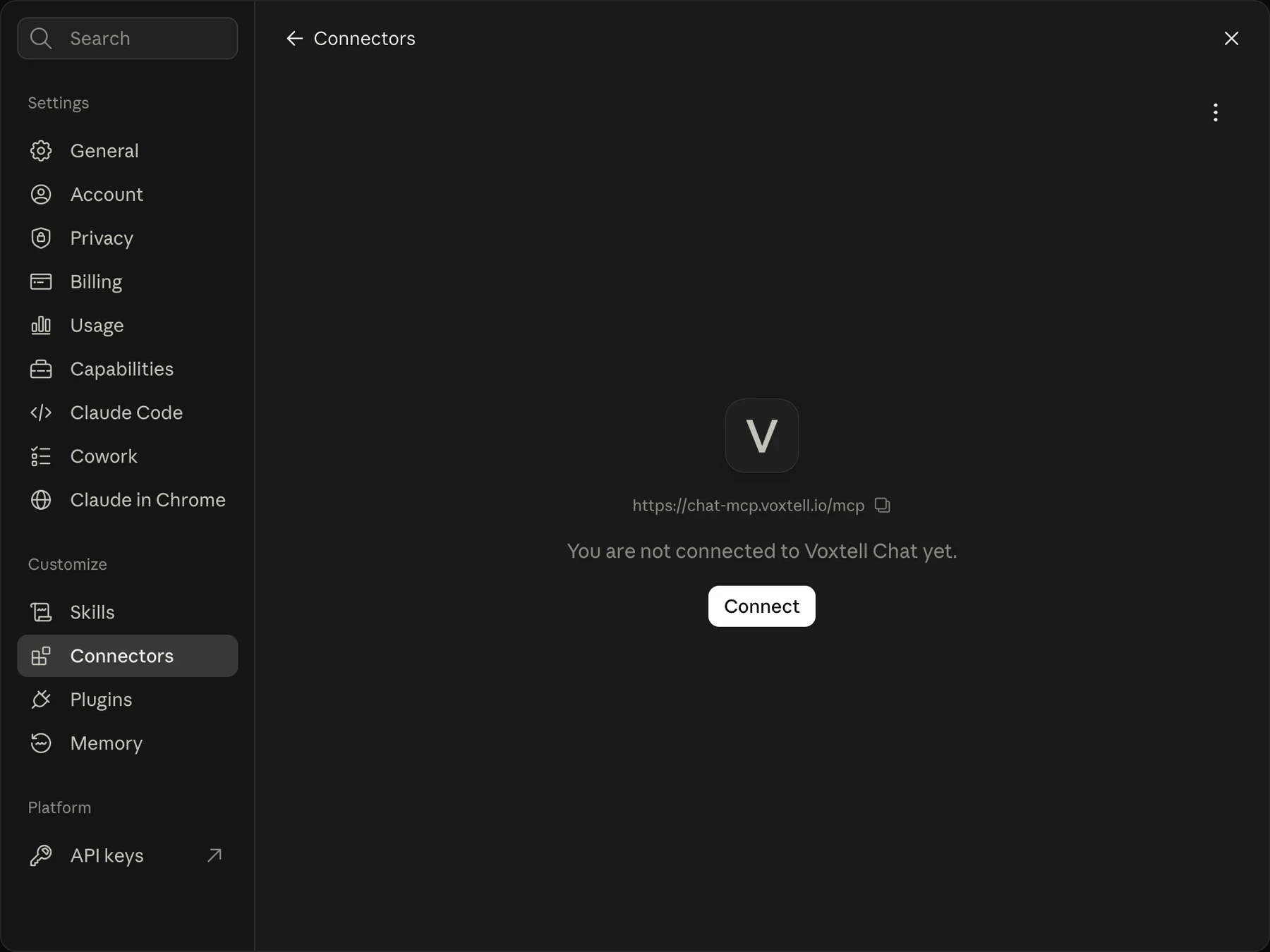
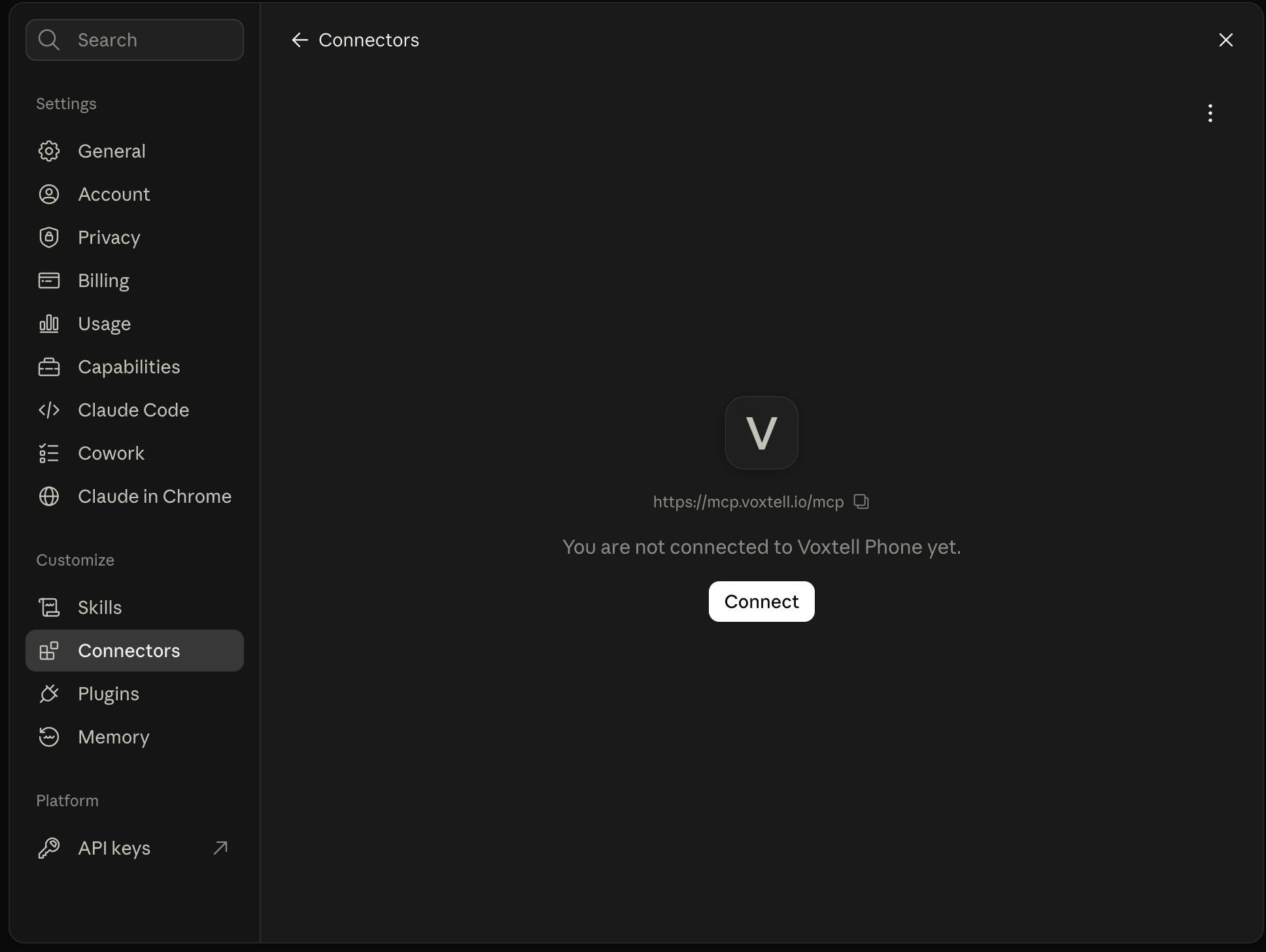
Click Connect, then sign in
Claude opens the new connector and says you are not connected yet. Click Connect and sign in on the Voxtell page exactly as in the main path above.
Claude Code
For the terminal. One command per connector.
- 01
Add the connector
Run: claude mcp add --transport http voxtell-phone https://mcp.voxtell.io/mcp (or voxtell-chat with https://chat-mcp.voxtell.io/mcp).
- 02
Sign in
Type /mcp inside Claude Code, choose the Voxtell connector, and follow the sign-in link.
- 03
Ask
Ask in plain language. Claude Code lists the Voxtell tools it can use and asks before using them.
First things to try
- “What happened on the phones today?”
- “Read me my new voicemails.”
- “Who is on a call right now?”
- “Show my open conversations.”
- “What did the customer in conversation 218 ask for?”
- “Who resolved the most conversations this week?”
Disconnect
- In Claude, open Customize, then Connectors.
- Find Voxtell Chat or Voxtell Phone and choose Remove.
- Access is revoked immediately. For Voxtell Chat, you can also regenerate your API token under Profile settings if you want the stored token gone.
Questions people ask
Works with Claude. Claude is a trademark of Anthropic, PBC. Voxtell is not affiliated with, endorsed by, or sponsored by Anthropic.
Safe by design
Your assistant never sees your password
You sign in on a Voxtell page. Claude or ChatGPT only ever receives a revocable connection key.
It cannot delete anything
The connectors have no delete actions. Replies and updates happen only when you ask, and your assistant shows you what it is about to do.
Your data is not used to train AI models
Voxtell does not use your conversations or calls to train models, and the connector privacy pages say exactly what is stored.
Connect in the next five minutes
Find Voxtell in Claude's directory or paste one address into ChatGPT, sign in with your usual Voxtell login, and your assistant knows your business.